Why use Notion?
Well I really like Notion, I use it for a lot of personal things and recently started using it for keeping my notes for studying. I also didn’t really like any other CMS’s like Sanity. It seemed like a bit to much for me for a personal blog.
I also wanted something that I would be able to call over an API. I tried to create a static markdown blog but with constant building it didn’t really make sense for me.
Why Svelte?
Well, no reason other than it was super simple to use. It really just made sense to me. I was going to use Next.js but it seemed like it was going to be way more than what I needed for a small portfolio site. Also, next.js is pretty hard not to use with Typescript anymore which I don’t mind but for this small site using just plain JavaScript was all that I needed.
Setting up Notion
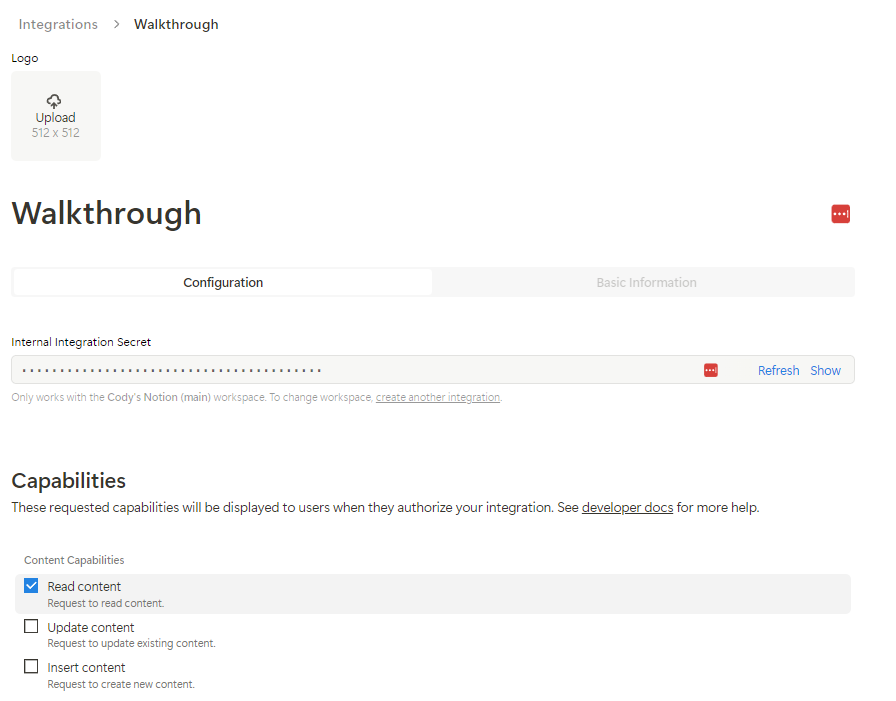
First you need to create a new integration which can be found here Notion Integrations
You’ll then need to configure it as seen below. You’ll be able to set security permissions here. I recommend you give read access for this API.
Then you’ll want to create a database in notion and set the right fields that you would need for your blog.
For example, here are the fields my blog currently has.
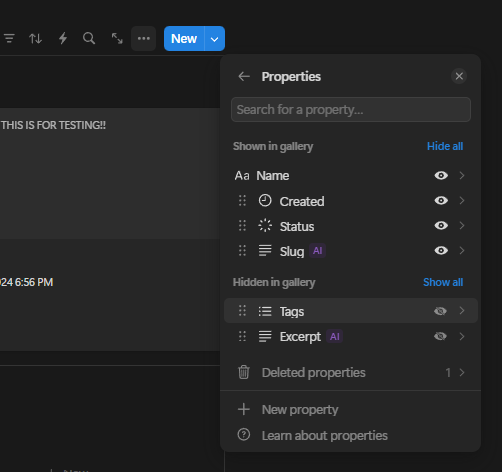
Then you need to save the database ID. This will be your second environment variable. You need to open the database you just created by clicking the expand (it’s the arrows next to the menu button pictured above)
You will then see the URL with this structure
https://www.notion.so/<DATABASE_ID>?v=<OTHER_ID>
You’ll want to save this ID for later.
Setting up Svelte
I wont go through the full process of setting up svelte but you can find more about the docs here. I recommend following the getting started.
You’ll need to set up a .env file
NOTION_SECRET=<YOUR_SECRET>
NOTION_BLOG_ID=<YOUR_BLOG_ID>
Once that is done you’ll need to install this package, I used npm. Sorry in advance.
npm install @notionhq/clientOnce that is installed you can create a notion.js file in your lib folder. It can look something like this
import { Client } from '@notionhq/client';
import { NOTION_SECRET, NOTION_BLOG_ID } from '$env/static/private';

export const notion = new Client({
	auth: NOTION_SECRET
});

// Returns all pages with a status of 'Live'
export function fetchPages() {
	return notion.databases.query({
		database_id: NOTION_DB_ID,
		filter: {
			property: 'Status',
			status: {
				equals: 'Live'
			}
		}
	});
}

// Fetch by a custom property
export function fetchBySlug(slug) {
	return notion.databases.query({
		database_id: NOTION_DB_ID,
		filter: {
			property: 'Slug',
			rich_text: {
				equals: slug
			}
		}
	});
}

// Returns the content
export function fetchPageBlocks(pageId) {
	return notion.blocks.children.list({
		block_id: pageId
	});
}
Now you should be able to call the contents of your gallery in Notion.
One technical challenge is rendering the notion block content. I decided as a challenge to build out the block render myself.
The blocks that exist in a page look something like this.
{
	"object": "block",
	"id": "c02fc1d3-db8b-45c5-a222-27595b15aea7",
	"parent": {
		"type": "page_id",
		"page_id": "59833787-2cf9-4fdf-8782-e53db20768a5"
	},
	"created_time": "2022-03-01T19:05:00.000Z",
	"last_edited_time": "2022-07-06T19:41:00.000Z",
	"created_by": {
		"object": "user",
		"id": "ee5f0f84-409a-440f-983a-a5315961c6e4"
	},
	"last_edited_by": {
		"object": "user",
		"id": "ee5f0f84-409a-440f-983a-a5315961c6e4"
	},
	"has_children": false,
	"archived": false,
  "in_trash": false,
	"type": "heading_2",
	"heading_2": {
		"rich_text": [
			{
				"type": "text",
				"text": {
					"content": "Lacinato kale",
					"link": null
				},
				"annotations": {
					"bold": false,
					"italic": false,
					"strikethrough": false,
					"underline": false,
					"code": false,
					"color": "green"
				},
				"plain_text": "Lacinato kale",
				"href": null
			}
		],
		"color": "default",
    "is_toggleable": false
	}
}
For example, all the content you see on this page is a block! You will need to build out components to render all of them.
I hope this was helpful. For more insight on how to build the block renderer, please reach out to me!